Set up the MCP
One link connects your AI to your training data. Free for a limited time.
https://mcp.pacing.tools/mcpClaude and ChatGPT only need the link: paste it, then sign in to Pacing Tools. Claude Code, Codex and other apps use a key instead. Before you connect, see how your data is handled.
Connect your AI
Claude on the web, desktop or phone
Add it once on claude.ai and it appears in the desktop and phone apps too. Works on every plan, Free included. On Team and Enterprise, an owner adds it for everyone.
- Open Customize, then Connectors
- Click Add, then Add custom connector
- Name it Pacing Tools and paste the link
https://mcp.pacing.tools/mcp - Click Continue, sign in to Pacing Tools and click Allow
- In a chat, open the plus menu, then Connectors, and turn Pacing Tools on
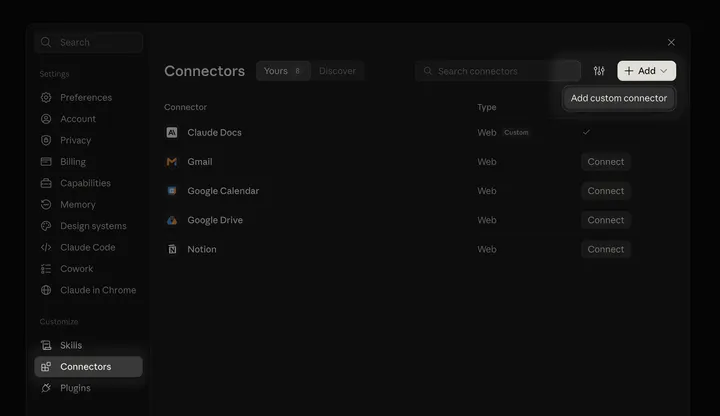
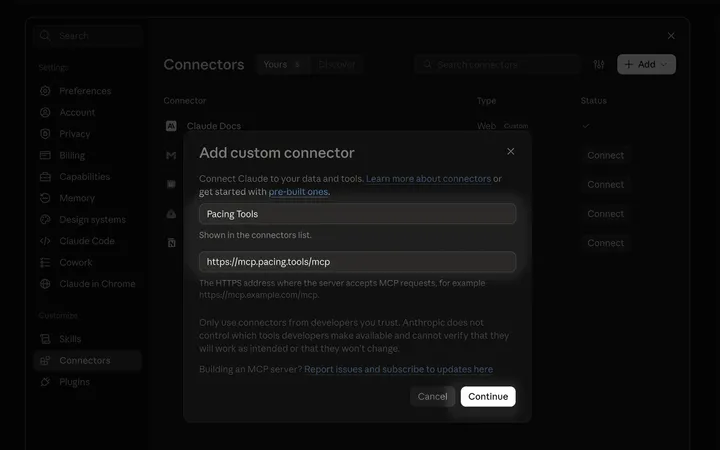
Ask Claude for your recent activities. If it answers with your own numbers, you are set.
Rather use a key? In step 4, choose No sign-in and add this header:
Authorization: Bearer YOUR_KEYClaude Code
Needs Pro, Max, Team or Enterprise. If you already added Pacing Tools on claude.ai, it is already here. Otherwise, run this with your key:
claude mcp add --transport http --scope user pacing https://mcp.pacing.tools/mcp \
--header "Authorization: Bearer YOUR_KEY"
Or paste this into a session and let Claude do it:
Add the Pacing Tools MCP server to Claude Code, for all my projects: name pacing, transport http,
URL https://mcp.pacing.tools/mcp, header "Authorization: Bearer YOUR_KEY".
Then call its get_recent_activities tool once to confirm it answers.
Check it with claude mcp list, or /mcp inside a session. The key is saved in your Claude Code
settings, so keep that file private.
ChatGPT on the web
Needs Plus, Pro, Business, Enterprise or Education.
- Open Settings, then Security and login, and turn on developer mode
- Go to chatgpt.com/plugins, click the plus, and create an app for an MCP server
- Paste the link as the MCP server URL
https://mcp.pacing.tools/mcp - Choose OAuth
- Sign in to Pacing Tools and click Allow
- Turn Pacing Tools on in a new chat and ask for your recent activities
Not yet confirmed in the ChatGPT phone app. If a step looks different for you, tell us at hi@pacing.tools.
OpenAI’s developer mode guideChatGPT desktop and Codex
Needs Plus or higher and a key. What you add here works in Codex and in Work chats, not in regular ChatGPT chats. For those, use the web steps above.
- In the desktop app, open Settings, then MCP servers
- Select Add server
- Name it pacing, choose Streamable HTTP, and paste the link
https://mcp.pacing.tools/mcp - Add the header
Authorization: Bearer YOUR_KEY - Save, then Restart
Using the Codex command line or the IDE extension instead? Add this to ~/.codex/config.toml,
then restart Codex and run /mcp to see it:
[mcp_servers.pacing]
url = "https://mcp.pacing.tools/mcp"
bearer_token_env_var = "PACING_MCP_KEY"
This reads the key from the PACING_MCP_KEY environment variable. To write the key into the file
instead:
[mcp_servers.pacing]
url = "https://mcp.pacing.tools/mcp"
http_headers = { "Authorization" = "Bearer YOUR_KEY" }Keys
Claude Code, Codex and other apps connect with a key. Create one in Connections on your athlete page. It shows the exact setup for the app you pick.
- A key is shown once. Copy it when you create it
- One key works in every app. A key per app lets you cut off one without touching the rest
- Up to five keys per account
- Treat a key like a password. If one leaks, revoke it in Connections and it stops working at once
- Apps you signed in to, like Claude or ChatGPT, appear on the same page and revoke the same way
Other apps
Any app that takes a remote MCP link and a request header works. Give it the link and your key:
https://mcp.pacing.tools/mcpAuthorization: Bearer YOUR_KEYThe server uses Streamable HTTP. Every tool is read-only, and each account gets 100 calls a day.
Your data
Your AI reads only your own data, and nothing it does can change it. Read how your data is handled for what we bring in from each source, what we keep, and how to remove it.